

Introduction — Why You Need Microsoft Clarity
Ever wondered what your users are really doing on your Angular app?
Microsoft Clarity is a free behaviour analytics tool that shows exactly that — with session recordings, heatmaps, and AI-powered insights that highlight what’s working and what’s frustrating your users.
Create a Microsoft Clarity Account
- Go to clarity.microsoft.com
- Sign in with your Microsoft or Gmail account.
- Click Add new project → enter your website name and URL.
- Choose your site category and language.
- Click Add Project — Clarity generates your tracking code.
Add Clarity Script to Angular
Add the snippet to the <head> section in your index.html
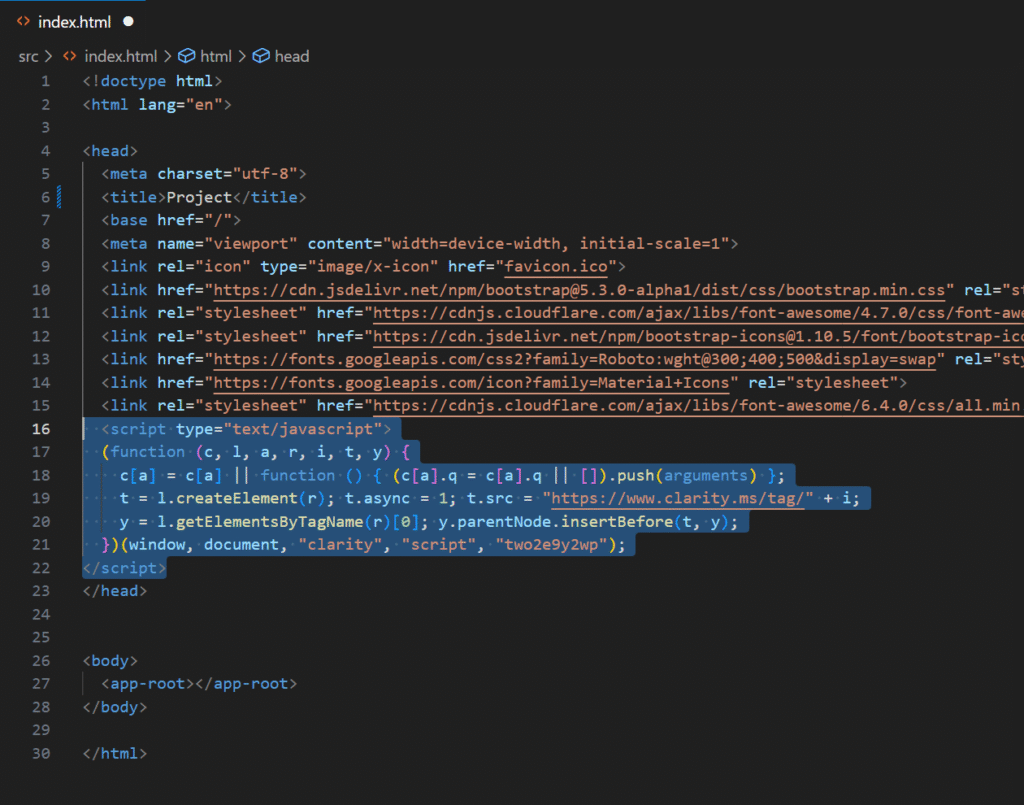
<!-- index.html -->
<script type="text/javascript">
         (function(c,l,a,r,i,t,y){
               c[a]=c[a]||function(){(c[a].q=c[a].q||[]).push(arguments)};
               t=l.createElement(r);t.async=1;t.src="https://www.clarity.ms/tag/"+i;
               y=l.getElementsByTagName(r)[0];y.parentNode.insertBefore(t,y);
           })(window, document, "clarity", "script", "YOUR_PROJECT_ID");
</script>
NOTE: Don’t hide the script in Angular’s lazy-loaded modules — it needs to load once globally, ideally in
index.html.
Route Tracking for Single-Page Apps (SPA)
Recommended:
In Angular, a Single Page Application (SPA) handles routing client-side, meaning page navigation doesn’t trigger full page reloads. Microsoft Clarity can track these route changes to provide heatmaps, session recordings, and insights for each “page” (route) in your Angular app. Below, I’ll explain how to implement route tracking in Angular to ensure Clarity captures navigation events accurately.
Listen to Angular Router Events:
- Use Angular’s Router module to detect navigation events, specifically NavigationEnd, which fires when a route change completes.
- Inject the Router service into a component or service to subscribe to these events.
Send Route Changes to Clarity:
- Use Clarity’s clarity() function to set a custom pageview or update the page URL when routes change.
- Clarity supports SPA tracking by allowing you to programmatically update the page context with clarity(‘set’, ‘page’, url) or similar commands.
Add SAP route tracking code in app.Component file
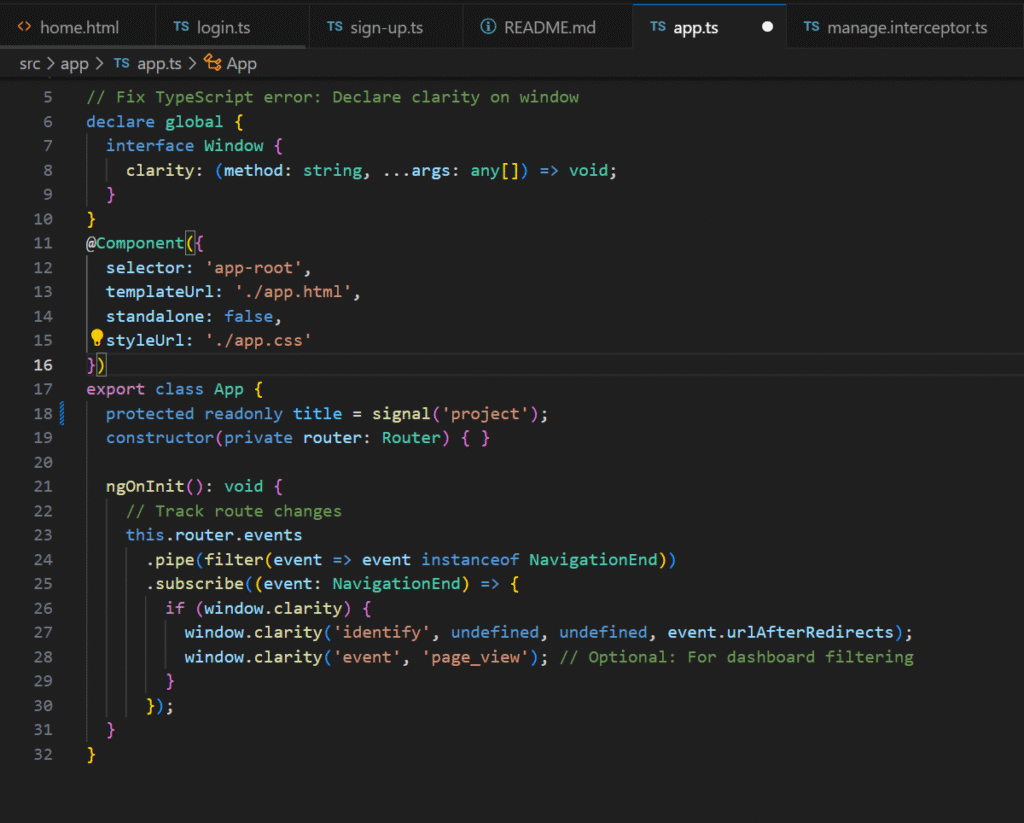
import { Component, signal } from '@angular/core';
import { Router, NavigationEnd } from '@angular/router';
import { filter } from 'rxjs/operators';

// Fix TypeScript error: Declare clarity on window
declare global {
  interface Window {
    clarity: (method: string, ...args: any[]) => void;
  }
}
@Component({
  selector: 'app-root',
  templateUrl: './app.html',
  standalone: false,
  styleUrl: './app.css'
})
export class App {
  protected readonly title = signal('project');
  constructor(private router: Router) { }

  ngOnInit(): void {
    // Track route changes
    this.router.events
      .pipe(filter(event => event instanceof NavigationEnd))
      .subscribe((event: NavigationEnd) => {
        if (window.clarity) {
          window.clarity('identify', undefined, undefined, event.urlAfterRedirects);
          window.clarity('event', 'page_view'); // Optional: For dashboard filtering
        }
      });
  }
}
Why this matters:
Without this, Clarity will only track your home page — not each route your users visit.
Verify Tracking
How to confirm Clarity is working:
Note: Clarity starts collecting data within minutes, but heatmaps may take 100 sessions to populate.
- Open clarity website https://clarity.microsoft.com
- Open your created project in clarity.
- After a few minutes, log into Clarity → check Recordings & Heatmaps
Features of Microsoft Clarity
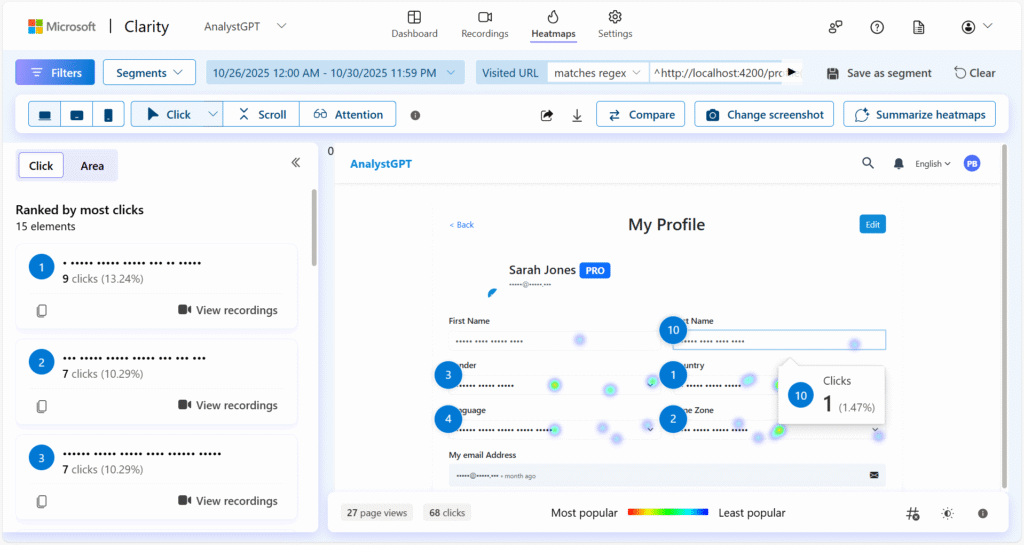
- Heatmaps: Visualize where users click, scroll, and spend time on your website.
- Click Heatmaps: Show where users click, highlighting popular areas or ignored elements.
- Scroll Heatmaps: Indicate how far users scroll down a page, helping identify content visibility.
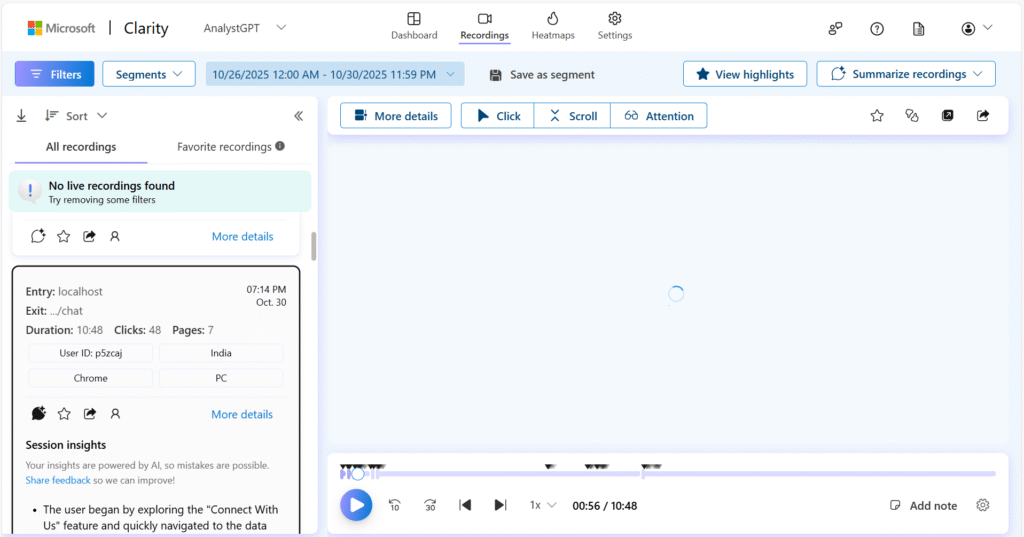
- Session Recordings: Watch real user interactions with your site, including mouse movements, clicks, and scrolling, to see how they navigate.
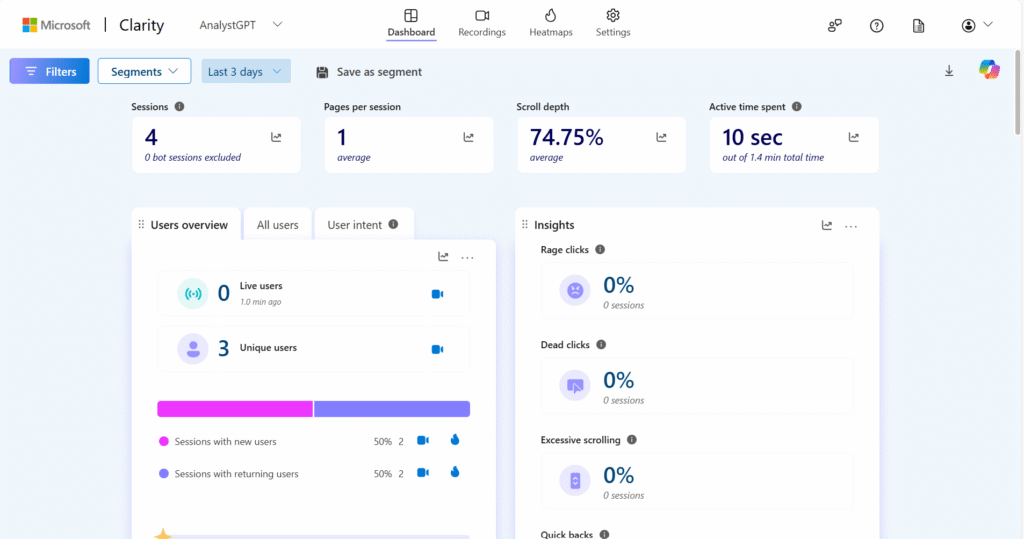
- Insights Dashboard: Provides metrics like rage clicks (repeated rapid clicks indicating frustration), dead clicks (clicks on non-interactive elements), and excessive scrolling, helping pinpoint usability issues.
- Filters and Segmentation: Narrow down data by device type, browser, country, referral source, or custom tags to analyze specific user groups.
- Integrations: Works with tools like Google Analytics for enhanced data correlation.
Conclusion
That’s it — you’ve just made your Angular app smarter with Microsoft Clarity!
You’ll now see how users interact with each route, where they click most, and what frustrates them. Use these insights to improve your UX and boost conversions.